ICC Profile Generation
One chart, a calibrated color baseline for the whole device
Every scanner and copy setup has its own color bias — the same negative scanned on different gear does not match. Shoot one reference photo of a color chart (IT8 or ColorChecker 24), and NegRGB detects the patches, reads the reference measurements and builds a dedicated ICC profile for that device. It joins the profile library and applies like any imported ICC, giving a whole roll one trustworthy color baseline.
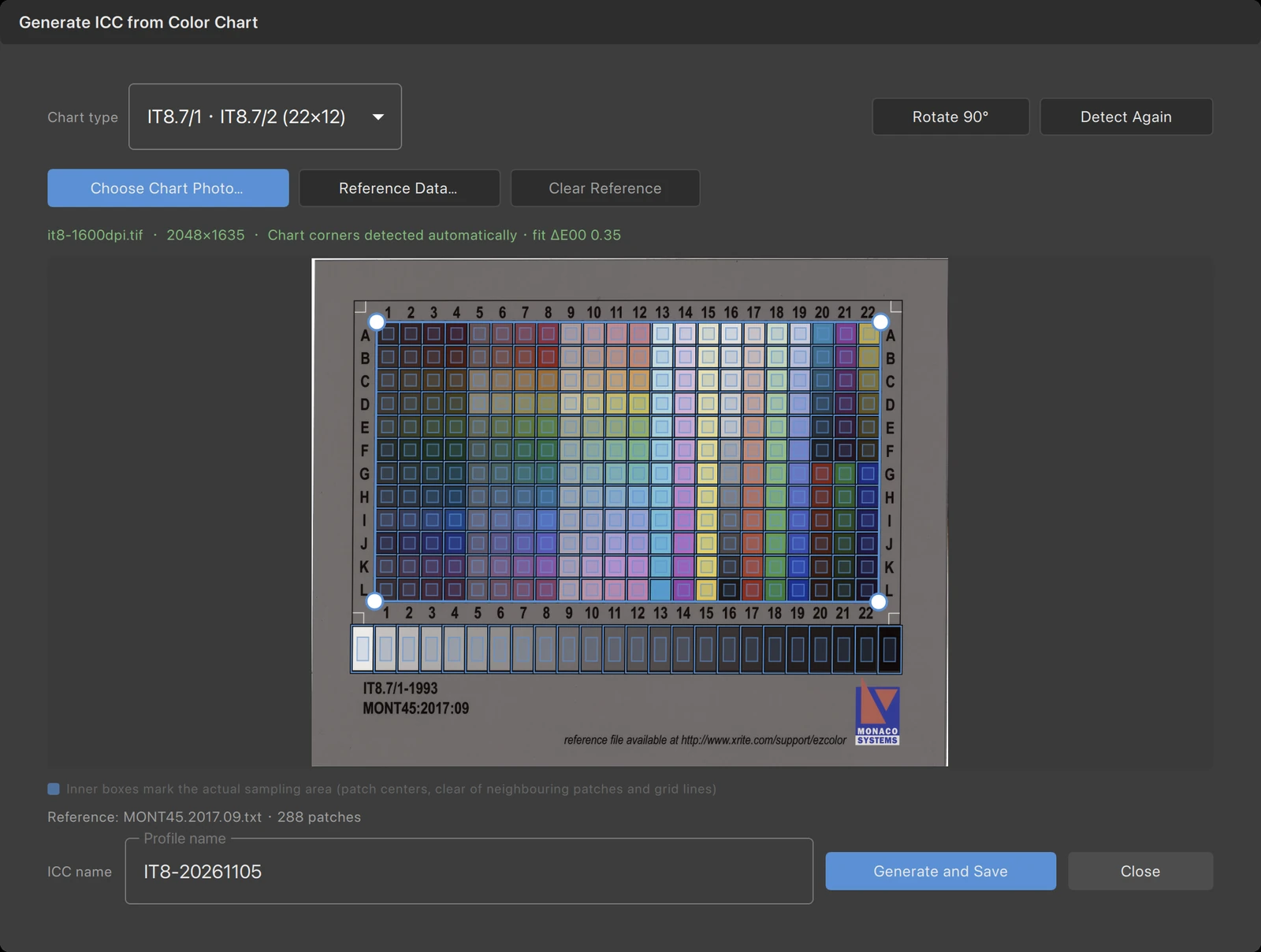
Highlights
- —Supports IT8.7/1 · IT8.7/2 (22×12 with a 24-step gray strip) and ColorChecker 24 charts
- —Detects the chart corners and every patch automatically, showing the fit ΔE00 right away
- —Drag the four corners to refine, or press Detect Again; Rotate 90° re-detects a sideways chart
- —Reads the measurement file shipped with the chart (.cie / .txt / .csv); ColorChecker 24 uses built-in values or your own measurements
- —Result summary with average / max ΔE00, patches used and clipping warnings
- —The generated ICC joins the profile library and applies to photos just like an imported ICC — never applied automatically
- —Works the same for scanners and camera copy setups: one chart, one color baseline for a whole batch
Why a color chart
The same roll can look different through different scanners or copy lighting: the film base cast can be removed, but the device's own color character does not disappear by itself. A color chart is a reference with known colors — IT8.7/1 · IT8.7/2 carries a 22×12 patch array plus a 24-step gray strip, while ColorChecker 24 spans skin tones, sky, foliage and neutrals. NegRGB compares every measured patch in the chart photo against the chart's standard reference values, builds a mapping from "what the device reads" to "the standard color", and writes it out as an ICC profile. Apply it to photos from the same device and color has a consistent baseline again.
- —The chart photo must be a positive — convert negatives first
- —An IT8 reference file is measured per chart and must be loaded; ColorChecker 24 has built-in reference values
- —Reference data can be the file shipped with the chart or a plain text / CSV file
Automatic detection, manual correction when needed
Once the chart photo is chosen, NegRGB finds the four chart corners and overlays the patch matching grid; the smaller inner box marks the actual sampling area, sitting in the middle of each patch away from edges and grid lines. If the detection is off, drag the four corners or press Detect Again; if the chart is sideways, press Rotate 90° and the photo is rotated and detected again automatically. The status line reports the detection result and the fit ΔE00, and loading reference data shows the patch count and re-detects precisely against the reference values.
- —Drag the corners and the sampling boxes follow every patch
- —Rotate 90° re-detects automatically — no need to fix the image first
- —Clear Reference returns to the unloaded state; ColorChecker 24 falls back to its built-in values
Generate, check quality, use it
Enter an ICC name and press Generate and Save: the profile appears in the profile library and behaves exactly like an imported ICC — select it in the Color Profile dialog to apply it to one photo or a whole selection (it is never applied automatically). A quality summary follows: average and maximum ΔE00, patches used out of the total, and how many patches were clipped, which tells you whether the chart photo is usable or should be reshot. Keep in mind that a generated profile is only valid for the same device under the same lighting and exposure settings; after changing scanner, lens or light source, shoot a new chart.
- —Quality summary: average / max ΔE00, patches used, clipping warnings
- —Lives in the profile library, applied per photo or in batches, and undoable at any time
- —Regenerate after changing gear or lighting; a reference file for a different chart version will skew the result